Pay your 2025 tax balance by going to www.irs.gov/payments. Follow the steps below for further instructions.
- Once you are on the IRS payment page, click on “Pay from your bank account.”

2. Under “Personal tax payments,” click on “Pay individual tax.”
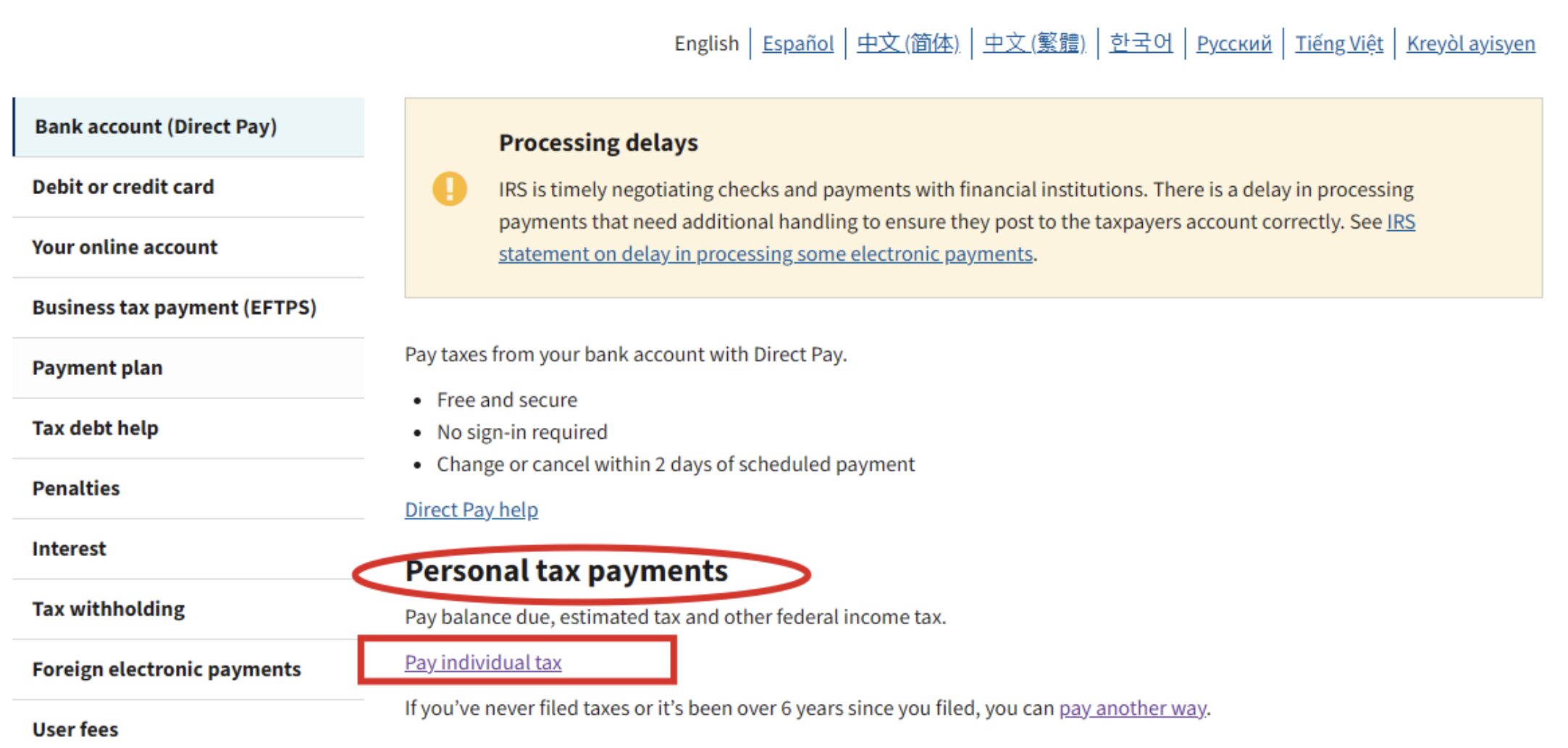
3. Then under “Pay personal taxes,” click on “Make a payment.”

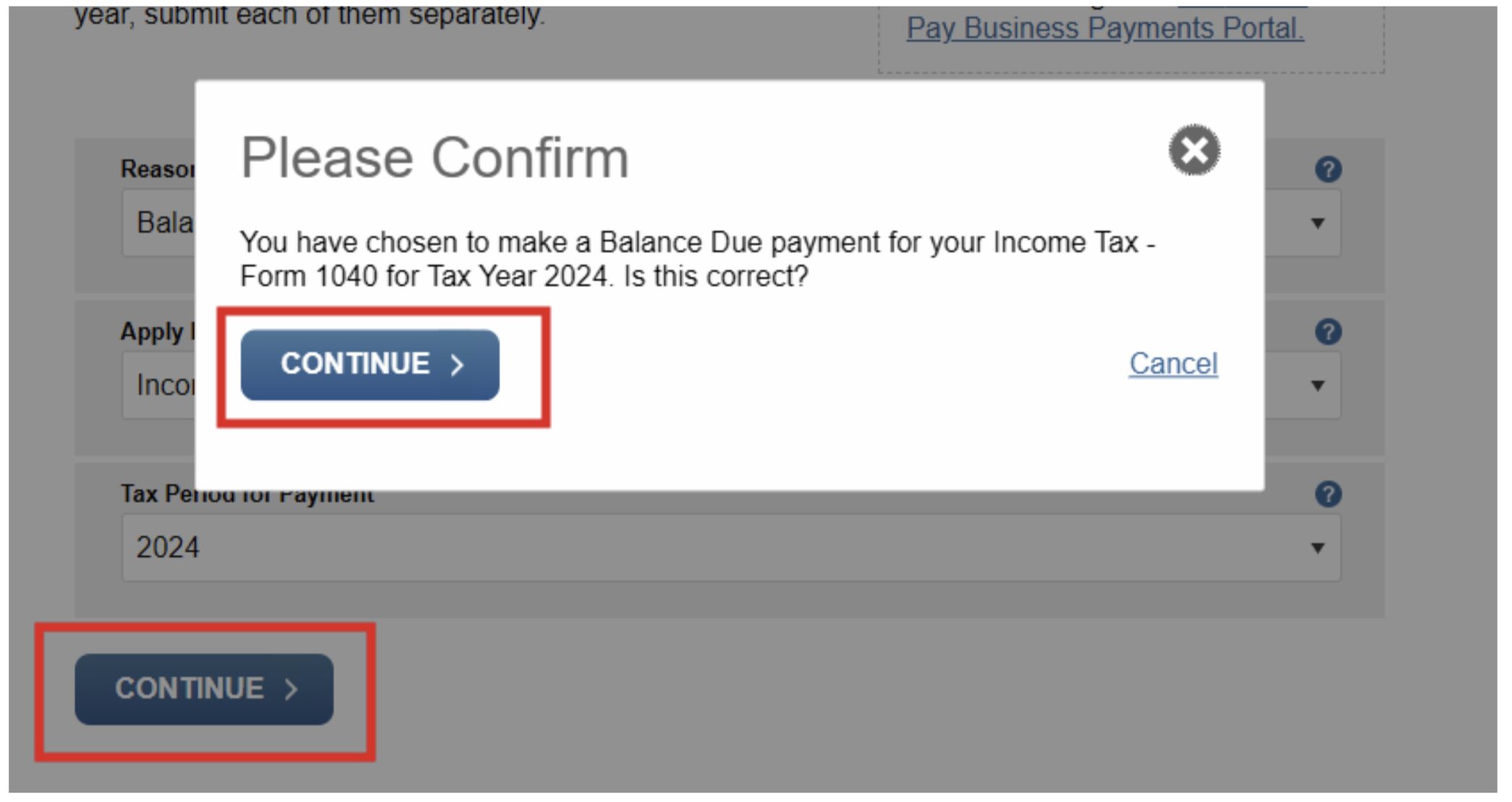
4. You will then be directed to the Direct Pay website to complete the payment. Under “Reason for Payment,” click on “Balance Due.”

5. In the following box, under “Apply Payment To,” click on “Income Tax – Form 1040.”

6. Then, on the following box under “Tax Period for Payment,” click on “2025.”

7. Then click on “Continue” and a pop up will come up to confirm, hit “Continue.“
8. This will then lead you to Verify your Identity. This requires you to have a prior year information ready on hand. Under “Tax Year for Verification” use any tax year you chose as verification.

9. After you clicked on a year, under “Filing Status” please chose the filing status that is reflected on the Tax Return for the year you chose for verification.

10. After you have selected the Filing Status, enter in your First Name, Last Name, Confirm Last Name, Social Security Number (without dashes), confirm Social Security Number, Date of Birth, and full address of residence. All these boxes need to be filled out as they are on your 1040 Tax Return Pg 1.

11. After you have confirmed and reviewed your information, click on the “Privacy Act and Paperwork Reduction Act” Agreement box and then click “Continue.”

12. You will not be taken to the page to make the payment. Under “Payment Amount” enter in the total amount due as per your Federal Instruction Sheet we provided. Then confirm the payment amount in the box below.

13. Then enter in the “Payment Date”, you select the day you would like the amount to be withdrawn. Please remember that all Federal Tax amounts are due by April 15th. You then will enter in your routing and account number and choose if it is a Checking or Savings account.

14. After you have reviewed and confirmed your bank information, click on the box to “Agree to email confirmation” and enter in your email address and click “Continue.” This will allow you to get an email confirmation of the payment you make.

15. Once you have clicked on “Continue” a pop-up screen will show. Click on “I agree” this verifies that you want to make this payment.

16. After you click on “I Agree,” you will get a “Review & Sign” page, in which you will see the information you entered greyed out. Please review this very carefully. If you need to change anything, click on “Edit.” If you don’t, under “Electronic Signature” enter in your first and last name and your social security number (without any dashes) and then the box to “Accept the Debit Authorization Agreement” and hit “Continue.” This completed the payment of the tax balance due.

17. You will then be prompted a “Confirmation Page” in which you should print and save for your records.

HOME | ABOUT | SERVICES | PAY YOUR TAX BALANCE | PAY SERVICE | CONTACT
Copyright © 2026 | Pardo & Associates, CPAs